A desktop PC — the box that sits on or under your desk and connects to a separate monitor, keyboard, and mouse — might feel like old technology now that laptops are everywhere. But for a home office, a desktop almost always gives you more performance for the money, easier upgrades, and a screen setup you actually control. The tradeoff is obvious: it doesn’t travel. If your work happens at a desk most of the time, that tradeoff is worth it. This guide is built around one core question: what do you actually do all day? The answer — not the spec sheet — should drive what you buy. We’ll walk through four realistic workload profiles, show you the component decisions that matter for each, and give you clear “if X, then Y” rules so you can stop second-guessing and buy with confidence.
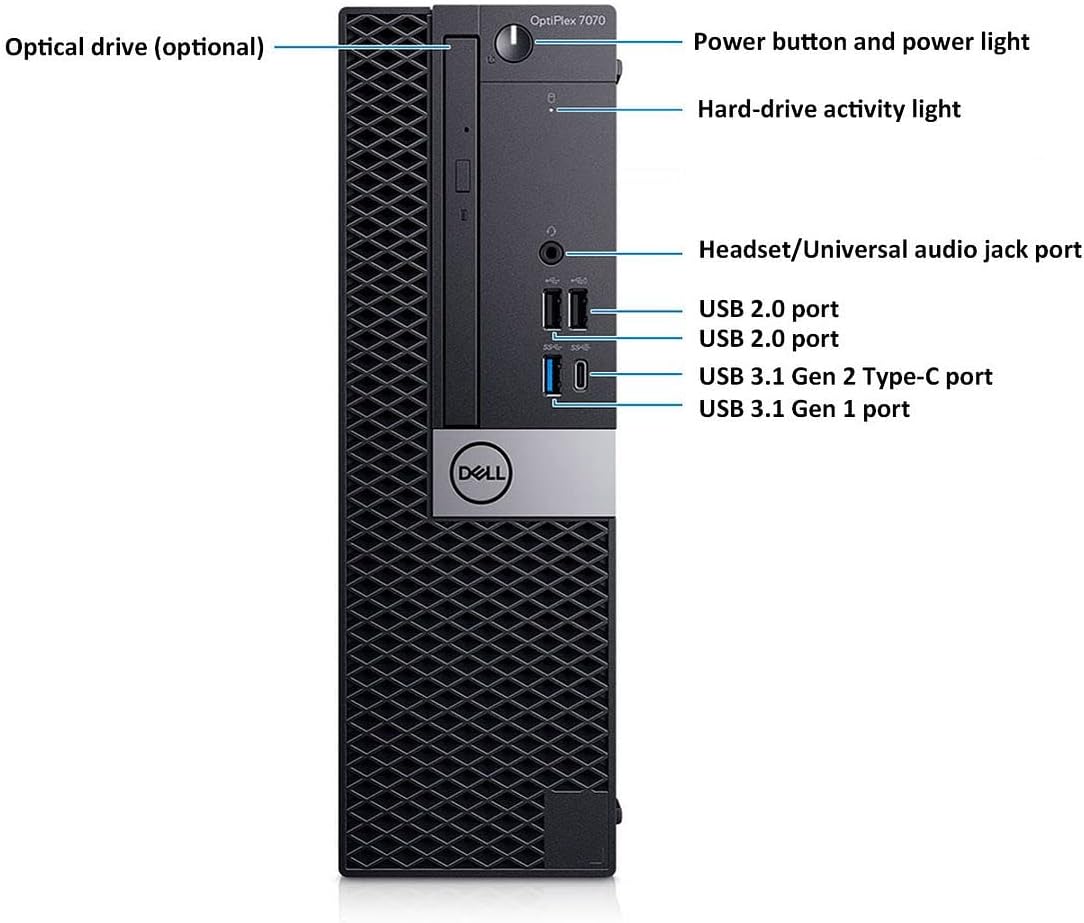
| EDITOR'S PICK[Dell Tower Desktop ECT1250](https://www.amazon.com/dp/B0F3P5NF56?tag=greenflower20-20) - In… | Mid-tier[Dell OptiPlex 7070 SFF Desktop](https://www.amazon.com/dp/B0GZVD5VX2?tag=greenflower20-20)… | Budget pick[DELL Optiplex 7060 SFF Desktop](https://www.amazon.com/dp/B0GG3MMVNC?tag=greenflower20-20)… | |
|---|---|---|---|
| Processor | Intel Core Ultra 7-265 | Intel Core i7-9700 | Intel Core i7-8700 |
| Graphics | UHD Graphics | — | — |
| Storage | 1TB M.2 SSD | 1TB NVMe M.2 SSD | 512GB NVMe M.2 SSD |
| Form Factor | Tower | SFF | SFF |
| Price | $1,199.99 | $479.99 | $377.79 |
| See on Amazon → | See on Amazon → | See on Amazon → |
Why Workload Matching Matters More Than Spec Chasing
Here’s the trap most buyers fall into: they read a benchmark number — say, a processor score from a review site — and assume bigger is always better. It often isn’t, because every component in a desktop has a performance ceiling relative to your actual tasks. A video editor rendering 4K timelines runs into a completely different bottleneck than a paralegal managing spreadsheets and video calls.
Reviewers at Tom’s Hardware note consistently in their desktop buying guides that the biggest waste of money in the sub-$800 segment is overbuying CPU (the central processing unit — the chip that handles most general computing tasks) while underbuying RAM (random-access memory, the workspace the CPU uses while multitasking) or storage. Those two components affect your felt speed far more than raw CPU performance for most home office work.
The math is blunt here:
By the numbers:
- 8 GB RAM: adequate for a single-app workflow with a handful of browser tabs
- 16 GB RAM: the practical floor for multitasking home office use in 2026
- 32 GB RAM: recommended if you’re running a local AI model, light video editing, or large spreadsheets alongside video calls
- 64 GB+ RAM: the entry point for professional 3D rendering or machine-learning workloads — beyond this guide’s scope
Digital Trends’ home office desktop roundups echo this consistently: buyers who step up from 8 GB to 16 GB RAM report the most noticeable real-world improvement, often more than they’d feel from a processor upgrade.
The Four Home Office Workload Profiles (and What Each Actually Needs)
Profile 1 — The Browser-and-Docs Worker
This is the most common home office use case and the one most likely to result in overspending. If your day is email, video calls (Zoom, Teams, Google Meet), browser research, and cloud-based productivity tools like Google Workspace or Microsoft 365, you genuinely do not need a premium machine.
What actually matters:
- A modern processor with efficient cores — Intel’s Core i3 or AMD’s Ryzen 5 (both mid-range chips that handle everyday tasks smoothly without the premium price of higher-tier models) are more than adequate
- 16 GB of RAM — non-negotiable, especially with video calls open
- A fast solid-state drive (SSD) — this is where you should not cut corners; SSDs store your files and programs and load them orders of magnitude faster than older spinning hard drives
- A reliable Wi-Fi or Ethernet connection (a desktop’s wired Ethernet port is a genuine advantage over laptops for call stability)
Where not to spend: A dedicated GPU (graphics card, the chip that handles visual output and complex graphics) is largely unnecessary here. The graphics built into modern AMD Ryzen chips — called integrated graphics — handle four monitors and 4K video playback without issue, per PCMag’s coverage of AMD’s integrated graphics performance.
If-then rule: If your entire workload lives in a browser and productivity apps, a sub-$600 mini PC or all-in-one with a Ryzen 5 or Core i5, 16 GB RAM, and a 512 GB SSD is the correct call. Spending beyond that is paying for headroom you won’t use.
Profile 2 — The Spreadsheet Power User and Financial Analyst
This profile often underestimates its own needs. Large Excel or Google Sheets files — especially with complex formulas, pivot tables, or Power Query data connections pulling from external sources — can be genuinely CPU-intensive. Wirecutter’s desktop recommendations note that financial modeling workloads stress single-core performance (how fast the processor handles one task at a time) more than multi-core performance (how well it handles many tasks simultaneously).
What actually matters:
- Single-core CPU performance is the real priority — Intel’s Core i5-13500 or AMD’s Ryzen 5 7600 both punch well above their price for this use case, per Tom’s Hardware’s processor benchmark comparisons
- 16–32 GB RAM, depending on how many apps you run simultaneously
- Fast NVMe SSD (NVMe is a type of solid-state storage that connects directly to the motherboard for faster read/write speeds than older SATA-based SSDs) for large file access
Where not to spend: GPU, again, is not your bottleneck. Multi-core counts above 8 cores don’t meaningfully accelerate spreadsheet formulas in most productivity software.
If-then rule: If you’re routinely waiting on spreadsheet calculations or experiencing slowdowns with large datasets, prioritize a fast single-core processor and 32 GB RAM over anything else. A refurbished business desktop (Dell OptiPlex or HP EliteDesk series, frequently reviewed favorably at PCMag) with a RAM upgrade often outperforms a new budget machine for this workload at a lower total cost.
Profile 3 — The Light Creative (Photoshop, Lightroom, Occasional Video)
This is where the upgrade decisions start to cost real money — and where a lot of buyers either over-invest or get the priorities wrong.
Photo editing in Adobe Lightroom is primarily a CPU and RAM task; Photoshop starts to use the GPU for certain filters and the neural (AI-powered) features. Occasional video editing — say, trimming and color-correcting short clips for a YouTube channel or client deliverables — adds GPU and RAM demand.
What actually matters:
- A Ryzen 7 or Core i7 processor — both represent the upper-middle tier, offering strong multi-core performance for rendering and exports without the cost of the top-end chips
- 32 GB RAM (16 GB will work but you’ll feel it when Lightroom and Chrome are open simultaneously)
- A dedicated GPU — at this workload level, even a mid-range card like the NVIDIA GeForce RTX 4060 or AMD Radeon RX 7600 accelerates Lightroom AI masking, Photoshop neural filters, and video exports meaningfully
- At least 1 TB NVMe SSD, with secondary storage for a photo/video library
The tradeoff to name explicitly: A dedicated GPU in this price range costs $250–$350 and may push you above an $800 ceiling if you’re buying a complete pre-built. At that point, you’re deciding between a pre-built system with compromises (often a slower processor or less RAM to fit the GPU) or a custom build. Per Puget Systems’ hardware recommendation documentation, they consistently advise that for creative workflows, balanced builds — where no single component dramatically outpaces the others — outperform “hero spec” machines that max one component at the expense of others.
If-then rule: If you’re editing photos for clients or publishing video content and billing for it, treat the GPU as a business purchase, not a luxury. Owners of mid-range NVIDIA cards consistently report meaningful export-time improvements in creative suite workflows, which translates directly to hours per project. If you’re editing occasional personal photos, stay at 32 GB RAM and an integrated GPU — it’s sufficient.
Profile 4 — The Home Office Hybrid: Work by Day, Gaming or Light ML by Night
This is the most complexity-dense profile in the sub-$800 range because two different workloads pull in different directions.
Gaming performance is almost entirely GPU-dependent. Machine learning (ML) — using your computer to train or run AI models, increasingly common for developers and data practitioners — is split between GPU (for training) and RAM/CPU (for running models locally).
The honest news: at $800, you can’t have both optimally. The decision comes down to which workload is actually revenue-generating or time-sensitive for you.
What actually matters:
- GPU is the priority for this profile — the RTX 4060 or RTX 4060 Ti represent reviewers’ most-recommended choices in this price band for combined gaming and light ML work, per Tom’s Hardware’s GPU hierarchy guides and Digital Trends’ GPU recommendation roundups
- 32 GB RAM for ML inference (running a model locally after it’s trained elsewhere)
- A processor that won’t bottleneck the GPU — Ryzen 7 7700 or Core i7-14700F are frequently cited in Tom’s Hardware CPU pairing guides as strong matches for mid-range GPUs
The honest constraint: At $800 total system cost, fitting a quality GPU, 32 GB RAM, and a mid-tier processor leaves you very little for a case, power supply, and storage. This is where building your own desktop — choosing each part individually — almost always wins over a pre-built at the same budget. PCMag and Wirecutter both note that in the $700–$900 build range, custom builds routinely deliver 20–30% more performance than equivalently priced pre-builts, because pre-built margins are built into the price.
If-then rule: If gaming or ML is a real part of your weekly workflow, and you’re at all comfortable following a build guide, a custom build is the correct financial decision at this budget. If you want zero assembly and maximum convenience, accept that you’re paying a convenience premium and choose a pre-built with the best GPU you can get — everything else is secondary.
The Two Components People Get Wrong Most Often
Underbuying storage: Reviewers at PCMag and Wirecutter consistently flag this across home office desktop reviews. A 256 GB SSD is not a home office drive in 2026 — Windows alone with updates and a standard application suite consumes 60–80 GB. Buy 512 GB as a minimum; 1 TB is the practical recommendation. Owners report that running low on SSD space causes a measurable slowdown in system performance, not just inconvenience.
Overbuying CPU cores for non-rendering work: Unless you are rendering 3D scenes, transcoding video, or compiling large software codebases, 16-core processors offer almost no real-world benefit over 8-core processors for home office tasks. The per-dollar return on cores above 8 is essentially zero for profiles 1 and 2 above. That money is almost always better allocated to RAM or storage.
The Decision Framework
Match your money to your actual bottleneck, not to a number that looks impressive on a spec sheet.
- Browser and docs work → Ryzen 5 / Core i5, 16 GB RAM, 512 GB SSD, no dedicated GPU. Stay under $600.
- Spreadsheet power use → Fast single-core processor (Ryzen 5 7600 or Core i5-13500), 32 GB RAM, fast NVMe SSD. $650–$800 gets you there.
- Light creative work billed to clients → Ryzen 7 / Core i7, 32 GB RAM, mid-range GPU (RTX 4060 class), 1 TB SSD. This is a legitimate $800–$1,000 investment; treat it as one.
- Gaming or ML hybrid → GPU-first budget allocation. At $800, consider a custom build. If buying pre-built, accept the compromise and prioritize the GPU.
The machine that matches your workload and stays within budget will feel faster and more capable than a higher-specced machine that skimped on the component you actually needed. Buy to your bottleneck, not to the ceiling.