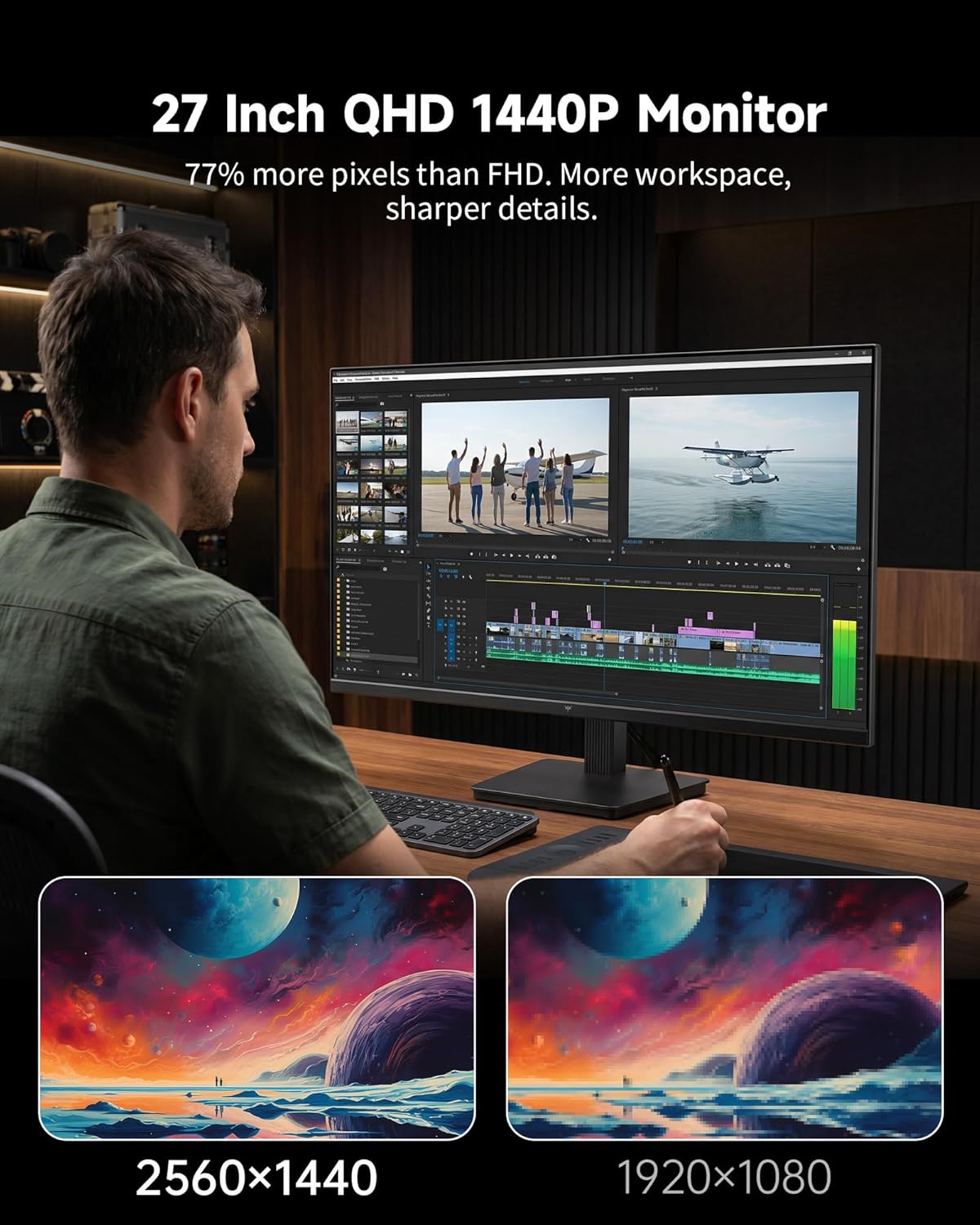
If you’re building or upgrading a PC right now and you’ve landed on a 27-inch display in the $300–$700 range, there’s a very good chance 1440p is the resolution someone recommended. QHD — which stands for Quad High Definition — means the screen has 2,560 × 1,440 pixels, exactly four times the pixel count of 720p HD. That density gives you noticeably sharper text and images compared to a standard 1080p monitor, without demanding the enormous GPU (graphics card) horsepower that a 4K screen requires. For a gaming PC built around a current-generation GPU like an RTX 4070 or RX 7800 XT, 1440p is widely considered the “sweet spot” — you get a sharp, responsive image without sacrificing the high frame rates that make games feel fluid. This guide is for builders who want that gaming performance and a display accurate enough to use for creative work: photo editing, video grading, digital illustration, or even just wanting colors that look honest. We’ll name the key panel technologies, show the tradeoffs in plain numbers, and end with clear decision rules.
Why Panel Technology Is the Actual Decision, Not Just the Resolution
Once you fix resolution at 1440p, the next branching point is panel type. This is where most buying mistakes happen, because spec sheets list panel names without context.
IPS (In-Plane Switching) panels are the default recommendation for anyone doing color work. They offer wide viewing angles (colors don’t shift when you’re not sitting dead-center), and they historically lead in color accuracy out of the box. The main complaint with older IPS was “IPS glow” — a faint haze visible in dark corners — but modern fast IPS panels have reduced this significantly. Reviewers at RTINGS.com consistently note that high-end IPS monitors reach 95–99% of the sRGB color space (the standard gamut for web content and most video) with Delta E averages under 2.0, which is the benchmark for “visually accurate” to the human eye.
VA (Vertical Alignment) panels are the contrast kings. Where IPS monitors typically measure contrast ratios around 1,000:1, a strong VA panel can hit 3,000:1 or higher — blacks look genuinely black, not dark gray. That’s a tangible difference in a darkened room for gaming or cinema content. The tradeoff: VA panels have historically shown “smearing” on fast motion — dark pixels take longer to transition, leaving a visible trail behind moving objects. This matters a lot in competitive first-person shooters and less in slower RPGs or strategy games.
OLED panels are the new entrant pushing into the $400–$700 range at 1440p. OLED (Organic Light-Emitting Diode) technology allows each pixel to emit its own light and switch off completely, producing effectively infinite contrast. Tom’s Hardware’s roundups for 2025 consistently place QD-OLED monitors — which layer quantum dot film over the OLED substrate for wider color — among their top gaming picks for both responsiveness and visual fidelity. The catch: OLEDs are at higher risk of permanent image retention (commonly called “burn-in”) when static elements — a desktop taskbar, a game’s HUD, a Photoshop toolbar — sit on screen for thousands of hours. For a dual-use display that spends eight hours a day in Premiere Pro or Lightroom, this is a real operational risk, not a theoretical one.
Fast IPS with 1ms GtG response has become the safe baseline for dual-use builders. “GtG” stands for Gray-to-Gray, a measurement of how quickly a pixel can change from one shade to another. At 1ms, most of the motion smear concern evaporates for gaming, while the IPS color accuracy remains intact.
The Numbers That Actually Drive the Decision
Here’s a compressed comparison of what the three panel types deliver at 1440p in the $350–$650 price band, based on aggregated published specifications and reviewer measurements:
| Panel Type | Typical Contrast | sRGB Coverage | Motion Risk | Burn-In Risk |
|---|---|---|---|---|
| Fast IPS | ~1,000:1 | 95–99% | Low | None |
| VA | ~3,000:1 | 90–95% | Moderate | None |
| QD-OLED | ~1,000,000:1 (infinite) | 99–100%+ (DCI-P3) | Very Low | Real (static UI) |
By the numbers: A QD-OLED’s contrast advantage is roughly 3,000× greater than a premium IPS panel. But per RTINGS.com’s long-term OLED testing methodology, burn-in risk becomes measurable after 1,000–3,000 hours of high-brightness static content — a timeline that arrives within 18 months for a full-time workstation user.
Refresh Rate, Sync Technology, and Where the Tradeoffs Bite
At 1440p, you’ll see monitors ranging from 144Hz to 360Hz. The refresh rate — measured in Hertz (Hz), meaning screen refreshes per second — determines how smoothly motion appears, independent of how many frames your GPU actually produces.
For competitive gaming (first-person shooters, battle royale), reviewers at PC Mag consistently recommend 165Hz as the practical minimum in 2025–2026, with 240Hz providing a meaningful edge for players who’ve trained at those frame rates. For creative workflows, 60Hz is the technical floor, but 144Hz makes the general desktop experience noticeably smoother during scrolling and UI interaction.
The important nuance: raw refresh rate only helps if your GPU can deliver the frames. A 240Hz monitor running at 80fps produces no benefit over a 144Hz monitor. This is where adaptive sync technology — G-Sync (NVIDIA’s proprietary system) and FreeSync (AMD’s open standard) — matters. Both technologies allow the monitor to dynamically match its refresh rate to whatever frame rate the GPU is producing at any given moment, eliminating screen tearing (the visible horizontal split when GPU and monitor are out of sync). Most premium 1440p monitors now ship with VESA Adaptive-Sync certification, which works with both platforms.
Practical guidance from TechRadar’s QHD buyer’s guide: if you’re on an NVIDIA GPU, prioritize G-Sync Compatible certification over native G-Sync (which adds hardware cost and typically $100–$150 to the panel price). G-Sync Compatible monitors pass NVIDIA’s validation for tear-free performance and cost significantly less.
Color Accuracy for Creative Work: What “Good Enough” Actually Means
This is where gaming monitor marketing and professional display language start to blur, and where builders who care about color need a clear framework.
sRGB is the baseline color space for web content, most streaming video, and consumer photography. A monitor covering 95%+ of sRGB with a Delta E under 2.0 (a measure of color error — lower is better) is accurate enough for photo editing intended for web delivery.
DCI-P3 is the wider color space used in cinema and increasingly in high-end video production. Monitors covering 90%+ of DCI-P3 are relevant if you’re grading video for streaming platforms or doing print-intent photography work. Most premium IPS and QD-OLED panels at this tier hit that threshold.
The factory calibration question is critical. A monitor that ships with a Delta E under 2.0 out of the box saves you the cost of a hardware colorimeter (a calibration device, typically $150–$250). Digital Trends’ 2025 1440p roundup flags this as a meaningful differentiator — some monitors advertise wide color gamut coverage but ship with significant inaccuracy across the gamut, requiring calibration before they’re usable for production work.
If you’re delivering content professionally — to clients, to a color-managed editorial pipeline, or to a platform with specific color specs — budget for a colorimeter regardless. If you’re editing for personal output or semi-pro work, a factory-calibrated IPS panel in this tier is typically sufficient.
One practical concern for dual-use monitors: gaming monitors often ship with proprietary “color modes” (vivid, game, cinema presets) that push saturation beyond accurate reproduction to make visuals pop. Owners consistently report that the default gaming presets on many panels are tuned for subjective preference, not accuracy. Finding and saving the “sRGB mode” or “standard” mode — and setting custom brightness to around 120 nits for indoor creative work — is usually the first configuration step reviewers at RTINGS.com recommend.
Specific Picks by Workflow Profile
Rather than a ranked list, here’s the decision framework by use case:
If your primary use is competitive FPS gaming with secondary color work: A 1440p, 240Hz fast IPS panel is the working recommendation. Published specs and aggregated reviewer data put current-generation fast IPS panels from LG and ASUS’s TUF line in this tier at 95–98% sRGB, sub-2ms GtG, and Delta E averages between 1.5 and 2.5 factory-fresh. You get accurate color without the static-content risk of OLED, and 240Hz is achievable on current mid-to-high-end GPUs at 1440p. Street prices as of mid-2026 sit in the $350–$480 range for proven options in this profile.
If your primary use is creative production (video, photo, illustration) with gaming as secondary: A 1440p, 144–165Hz IPS panel with factory calibration certification is the better fit. Puget Systems’ monitor guidance for creative professionals consistently emphasizes calibration accuracy and color space coverage over refresh rate, noting that most video production workflows are capped at 60fps delivery regardless of monitor refresh rate. Options from ASUS ProArt’s lower-tier lineup and LG’s UltraGear color-certified variants fall here, generally in the $400–$580 range.
If you want the best possible visual experience for single-player, cinematic, or story-driven games — and you’re disciplined about static UI habits: A QD-OLED 1440p panel at 240Hz is a genuinely different visual experience. The infinite contrast and near-instant pixel response make HDR content compelling in a way that IPS cannot replicate. The operational rule: enable pixel shift, use screensavers, avoid leaving static game menus or productivity apps idle for extended periods. Reviewers at Tom’s Hardware note that with active panel management, real-world burn-in risk is manageable — but it requires habits that a pure IPS panel doesn’t demand.
The Clear Decision Rule
Here’s the if/then breakdown:
- If you game competitively at 165fps+ and occasionally edit photos for web → fast IPS, 240Hz, G-Sync Compatible. Spend $350–$480.
- If you edit video or photos professionally and game in the evenings → calibrated IPS, 144Hz, DCI-P3 certified. Spend $420–$580. Factor in a colorimeter if the work is client-facing.
- If you primarily want cinematic gaming with HDR content and can manage OLED hygiene → QD-OLED, 240Hz. Spend $500–$650. Treat it as a three-to-five year capital asset with active management.
- If your workflow involves any static UI (spreadsheets open all day, a persistent game HUD, a locked desktop layout) → remove OLED from consideration entirely. The burn-in risk is actuarial, not hypothetical, at those usage patterns.
The resolution is fixed at 1440p. The GPU requirement is modest enough that a mid-range card handles it. Everything else — contrast, color accuracy, refresh rate, longevity — flows from the panel type decision. Make that choice against your actual daily workflow, not the monitor’s marketing category, and the rest of the spec sheet falls into place.